The problem
A deal lives on dates: contract, inspection, financing, appraisal, closing. They sit in your calendar, your notes and a few emails. When one date slips, you go hunting for everything that depended on it.
What it does
As of November 24, 2026, Timekeeper keeps each deal's key dates in one list, in order. It works in realtor mode.
You create a deal with its address and dates. When a date moves, you change it in that one list.
How to use it
First, your account needs Realtor mode (Solo and up). If it is on General, the Timekeeper page tells you to switch in Settings, Business, Industry Mode.
-
Open Timekeeper in the left menu. Deals are listed on the page, with New deal at the right.
 The Timekeeper page. New deal sits above your deals.
-
Press New deal. Type the property address and pick Buyer or Seller. Fill in the Contract date and Closing. Inspection, Financing and Appraisal are optional.
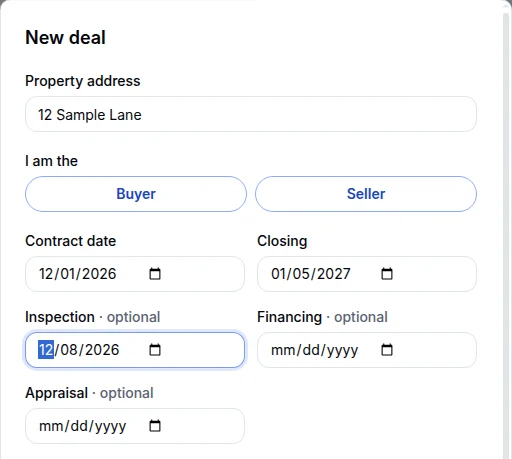 The New deal form. Here: contract 12/01/2026, inspection 12/08/2026, closing 01/05/2027.
-
Press Create deal. The deal shows up as a card with its key dates in order, and its closing date next to the address.
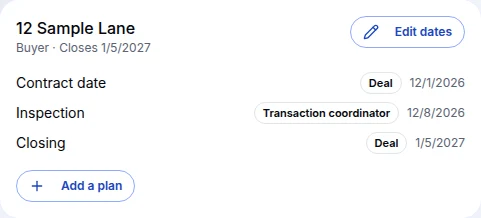 One card per deal. The closing date matches the form.
The small tag next to a date shows where that date came from. It does not mean the Transaction Coordinator is included with Timekeeper.
- A date moved? Press Edit dates on the card and change it.
Who has it
Timekeeper comes with realtor mode at no extra cost. You do not need the Transaction Coordinator add-on. Realtor mode is on Solo and up. See the pricing page.
Try it
Open Timekeeper in the app at /timekeeper and press New deal. No account yet? Start free, then pick Solo to turn on realtor mode. Want to see deals as a table too? Read See your deals in a sortable list.