The problem
You put your lessons in a community so people can learn at their own pace. But a long list of lessons is hard to scan. Members lose their place, and a new member does not know where to start.
What it does
As of November 16, 2026, the Classroom tab in your community looks different:
- One card per module. Each card shows the module name, how many lessons it has, a progress bar and a button: Start, Continue or Review.
- A cleaner lesson page. A lesson opens in its own page. The outline of the module sits on the left, so you can jump to another lesson without going back.
- A breadcrumb at the top. It shows Classroom, then the module name. One click takes you back to all the modules.
Your lessons and modules are not changed. Only the way they are shown.
How to use it
-
Open Community in the left menu, pick your community, and open the Classroom tab.
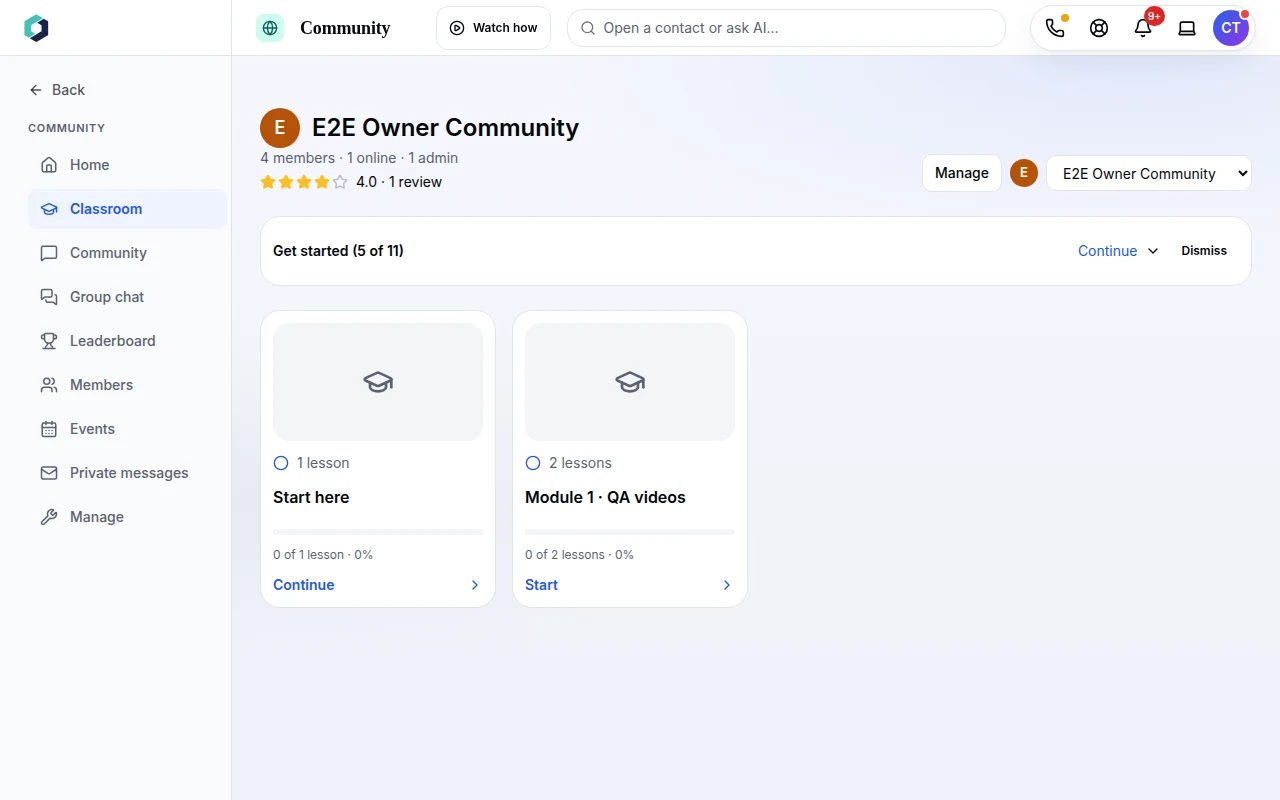 Each module is a card with its lesson count, progress and a Start or Continue button.
-
Click a card. The first lesson you have not finished yet opens (and is not locked).
-
Use the outline on the left to move between the lessons of the module. The lesson title and its content are on the right.
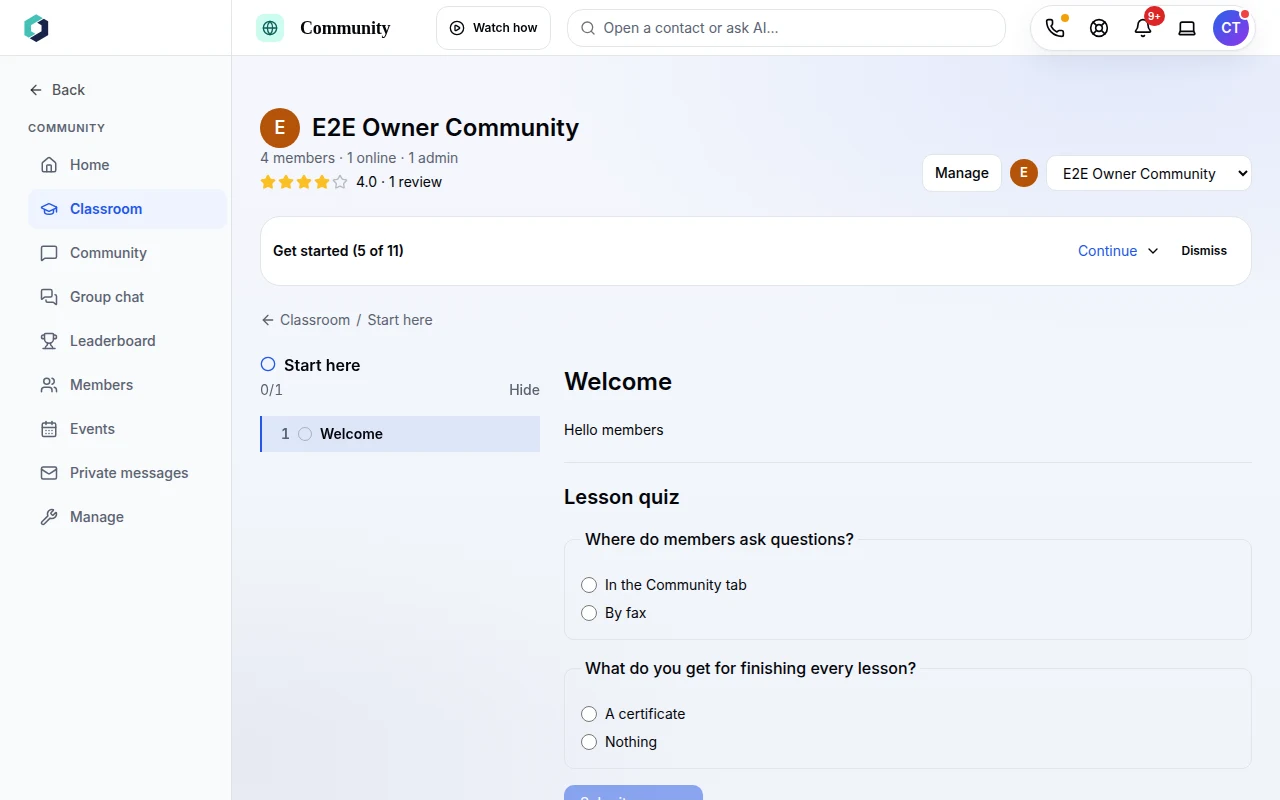 The lesson page for the "Start here" card. The outline is on the left, the lesson is on the right.
-
To go back to all the modules, click Classroom in the breadcrumb above the lesson.
Good to know
Lessons that are not in any module go into a card called "Start here". If your community has no lessons yet, the tab says so.
You add and edit lessons in Manage, as before.
Who has it
Lessons and courses are in the plan list for Community Free, Community Free Plus, and the paid community plans (97, 197 and 297). See the pricing page for member limits and prices.
Try it
Open your community's Classroom tab and click a module. No account yet? Start free. More about communities on the pricing page.